




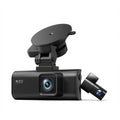
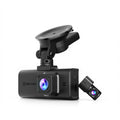
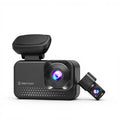
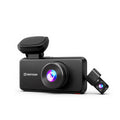



Find and see the latest products firmware updates
Important Notice
If your device is functioning properly, we DO NOT recommendperforming a firmware update. Both the device and firmware are developed through continuous iterations, and installing firmware that is not specifically compatible with your devicemay cause malfunction or even permanent damage. If you would like to learn more about firmware updates or need assistance, please contact our support team. We're here to help.
Thank you for your understanding.
Firmware Download
Select your dash cam model below.
Release Notes / Changelog:
1.Put the firmware upgrade file into the root directory of the TF card.
2.Turn off F17 Elite and insert the TF card.
3.Connect the F17 Elite to the power source and turn it on.
4.Wait patiently for 5-10 seconds, F17 Elite will ask whether to enter the upgrade mode, select "Yes" and wait.
5.After the upgrade is complete, the F17 Elite will automatically restart.
Note:The upgrade software will format your TF card.
Release Notes / Changelog:
We will send out automatic updates via push notifications. If you have any questions, please contact our support team to verify your Dash Cam model and obtain the corresponding firmware file.
Release Notes / Changelog:
1. Fixed an issue where the playback function would return to the recording interface and display thumbnails for a short period.
Update steps:1. Download the zip file "example.zip" to your computer.
2. Unzip the camera firmware with the extension .bin or .appsw to your computer.
3. Connect the SD card to your computer with a card reader.
4. Copy the firmware inside to the SD card.
5. Insert the SD card back into the dashcam.
Release Notes / Changelog:
Update steps:
1.Put the firmware upgrade file into the root directory of the TF card.
2.Turn off F17 Plus and insert the TF card.
3.Connect the F17 Plus to the power source and turn it on.
4.Wait patiently for 5-10 seconds, F17 Plus will ask whether to enter the upgrade mode, select "Yes" and wait.
5.After the upgrade is complete, the F17 Plus will automatically restart.
Note:The upgrade software will format your TF card.
Release Notes / Changelog:
Update steps:1. Download the zip file "example.zip" to your computer.
2. Unzip the camera firmware with the extension .bin or .appsw to your computer.
3. Connect the SD card to your computer with a card reader.
4. Copy the firmware inside to the SD card.
5. Insert the SD card back into the dashcam.
Release Notes / Changelog:
Update steps:1. Download the zip file "example.zip" to your computer.
2. Unzip the camera firmware with the extension .bin or .appsw to your computer.
3. Connect the SD card to your computer with a card reader.
4. Copy the firmware inside to the SD card.
5. Insert the SD card back into the dashcam.
Release Notes / Changelog:
1.Put the firmware upgrade file into the root directory of the TF card.
2.Turn off Dashcam and insert the TF card.
3.Connect the F7NP to the power source and turn it on.
4.Wait patiently for 5-10 seconds,Dashcam will ask whether to enter the upgrade mode, select "Yes" and wait.
5.After the upgrade is complete, the Dashcam will automatically restart.
Note:The upgrade software will format your TF card.
Release Notes / Changelog:
20250620 Update content:Optimize the copy speed of Emmc video files
If your F77 dash cam is128GB Version, please update this firmware.(This version only works with the 'Redtiger' app)
Update steps:1.Please turn off the power of the dash cam and remove the memory card (if there is a memory card).
2.Please copy the .bin or .appsw file to the root directory of the memory card and unplug the memory card.
3.Insert the memory card into the dash cam and power on the dash cam.
4.The dash cam will automatically upgrade without manual intervention. Please pay attention to the prompts on the dash cam screen. The upgrade process will take about a few minutes.
5.After the upgrade is complete, the dash cam will automatically restart and the upgrade is complete.
Release Notes / Changelog:
20250620 Update content:Optimize the copy speed of Emmc video files
If your F77 dash cam is256GB Version, please update this firmware.(This version only works with the 'Redtiger' app)
Update steps:1.Please turn off the power of the dash cam and remove the memory card (if there is a memory card).
2.Please copy the .bin or .appsw file to the root directory of the memory card and unplug the memory card.
3.Insert the memory card into the dash cam and power on the dash cam.
4.The dash cam will automatically upgrade without manual intervention. Please pay attention to the prompts on the dash cam screen. The upgrade process will take about a few minutes.
5.After the upgrade is complete, the dash cam will automatically restart and the upgrade is complete.
Release Notes / Changelog:
Update steps:1. Download the zip file "example.zip" to your computer.
2. Unzip the camera firmware with the extension .bin or .appsw to your computer.
3. Connect the SD card to your computer with a card reader.
4. Copy the firmware inside to the SD card.
5. Insert the SD card back into the dashcam.
Release Notes / Changelog:
If your F7N series dash cam isUSB-C Version(How to distinguish please see the video), please update this firmware.(This version only works with the 'Redtiger' app)Latest Version(Not Suitable For F7NT)
Installation Guide
Release Notes / Changelog:
If your F7N series dash cam isMicro USB Version(How to distinguish please see the video), please update this firmware.(This version only works with the 'Redtiger' app)
Installation Guide
Release Notes / Changelog:
1. Modified German strings
2. Fixed formatting reminder lasting 25 days and pop-up prompt lasting 15 days
3. [UI] During G-collision lock recording with ACC ON, locked state reverts to normal state; should remain locked
4. Fixed inconsistent front/rear camera photo counts during quick-key photo capture
Release Notes / Changelog:
1. Modified German strings
2. Fixed formatting reminder lasting 25 days and pop-up prompt lasting 15 days
3. [UI] During G-collision lock recording with ACC ON, locked state reverts to normal state; should remain locked
4. Fixed inconsistent front/rear camera photo counts during quick-key photo capture
Release Notes / Changelog:
F7N 本体のがMicro版のアップデートファイルです。 (このバージョンは「Redtiger」アプリでのみ使用可能です。)
以下は、アップデートの手順です。
1.上記リンクからファームウェアのZIPファイルをパソコンにダウンロードします。
2.ZIPファイルをパソコンで解凍し、「FWQ70A」.binファイルを取得します。
3.SDカードのルートディレクトリ(一番外側)に「FWQ70A」ファイルをコピーしてください。
4.SDカードを取り出して、本機に挿入しなおす。赤いランプが点滅し、青いランプが常に点灯している場合は、ファームウェアの更新中であることを意味します。アップデートが完了すると、自動的に本体が起動します。
Release Notes / Changelog:
1.Put the firmware upgrade file into the root directory of the TF card.
2.Turn off Dashcam and insert the TF card.
3.Connect the F7NP to the power source and turn it on.
4.Wait patiently for 5-10 seconds,Dashcam will ask whether to enter the upgrade mode, select "Yes" and wait.
5.After the upgrade is complete, the Dashcam will automatically restart.
Note:The upgrade software will format your TF card.
Release Notes / Changelog:
1.Put the firmware upgrade file into the root directory of the TF card.
2.Turn off Dashcam and insert the TF card.
3.Connect the F7NP to the power source and turn it on.
4.Wait patiently for 5-10 seconds,Dashcam will ask whether to enter the upgrade mode, select "Yes" and wait.
5.After the upgrade is complete, the Dashcam will automatically restart.
Note:The upgrade software will format your TF card.
Release Notes / Changelog:
Please contact our customer service to get the latest firmware
Please confirm your FTNT version first (V01/V02/V03/V04)
Release Notes / Changelog:
Update steps:1. Download the zip file "example.zip" to your computer.
2. Unzip the camera firmware with the extension .bin or .appsw to your computer.
3. Connect the SD card to your computer with a card reader.
4. Copy the firmware inside to the SD card.
5. Insert the SD card back into the dashcam.
Release Notes / Changelog:
Update steps:1. Download the zip file "example.zip" to your computer.
2. Unzip the camera firmware "SigmastarUpgradeSD_SSC8826.bin" or "SigmastarUpgradeSD_SSC8826.appsw
" to your computer.
3. Connect the SD card to your computer with a card reader.
4. Copy the firmware inside to the SD card.
5. Insert the SD card back into the dashcam.
Release Notes / Changelog:
Update steps:1. Download the zip file "example.zip" to your computer.
2. Unzip the camera firmware with the extension .bin or .appsw to your computer.
3. Connect the SD card to your computer with a card reader.
4. Copy the firmware inside to the SD card.
5. Insert the SD card back into the dashcam.
Release Notes / Changelog:
Update steps:1. Download the zip file "example.zip" to your computer.
2. Unzip the camera firmware with the extension .bin or .appsw to your computer.
3. Connect the SD card to your computer with a card reader.
4. Copy the firmware inside to the SD card.
5. Insert the SD card back into the dashcam.
Release Notes / Changelog:
1.Put the firmware upgrade file into the root directory of the TF card.
2.Turn off Dashcam and insert the TF card.
3.Connect the F7NP to the power source and turn it on.
4.Wait patiently for 5-10 seconds,Dashcam will ask whether to enter the upgrade mode, select "Yes" and wait.
5.After the upgrade is complete, the Dashcam will automatically restart.
Note:The upgrade software will format your TF card.
Release Notes / Changelog:
1.Put the firmware upgrade file into the root directory of the TF card.
2.Turn off Dashcam and insert the TF card.
3.Connect the F7NP to the power source and turn it on.
4.Wait patiently for 5-10 seconds,Dashcam will ask whether to enter the upgrade mode, select "Yes" and wait.
5.After the upgrade is complete, the Dashcam will automatically restart.
Note:The upgrade software will format your TF card.
Release Notes / Changelog:
Taking F7NP as an example, the firmware update steps can be referred to in this video (the steps for other models are basically the same)
Installation Guide
Verify your download
Please provide your purchase information before downloading this firmware.
Taking F7NP as an example, the firmware update steps can be referred to in this video (the steps for other models are basically the same)
You May Need

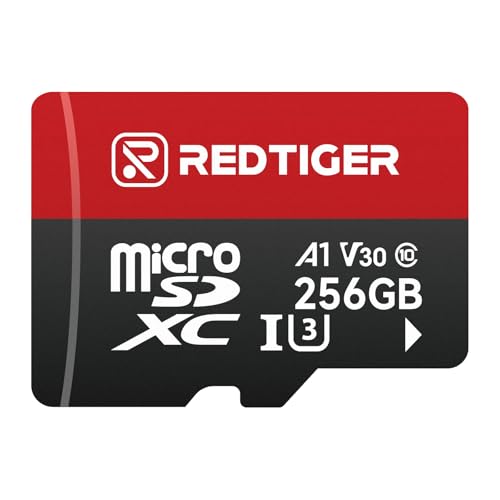







Find Your Perfect Dash Cam